
Play W.E.B. Full Screen
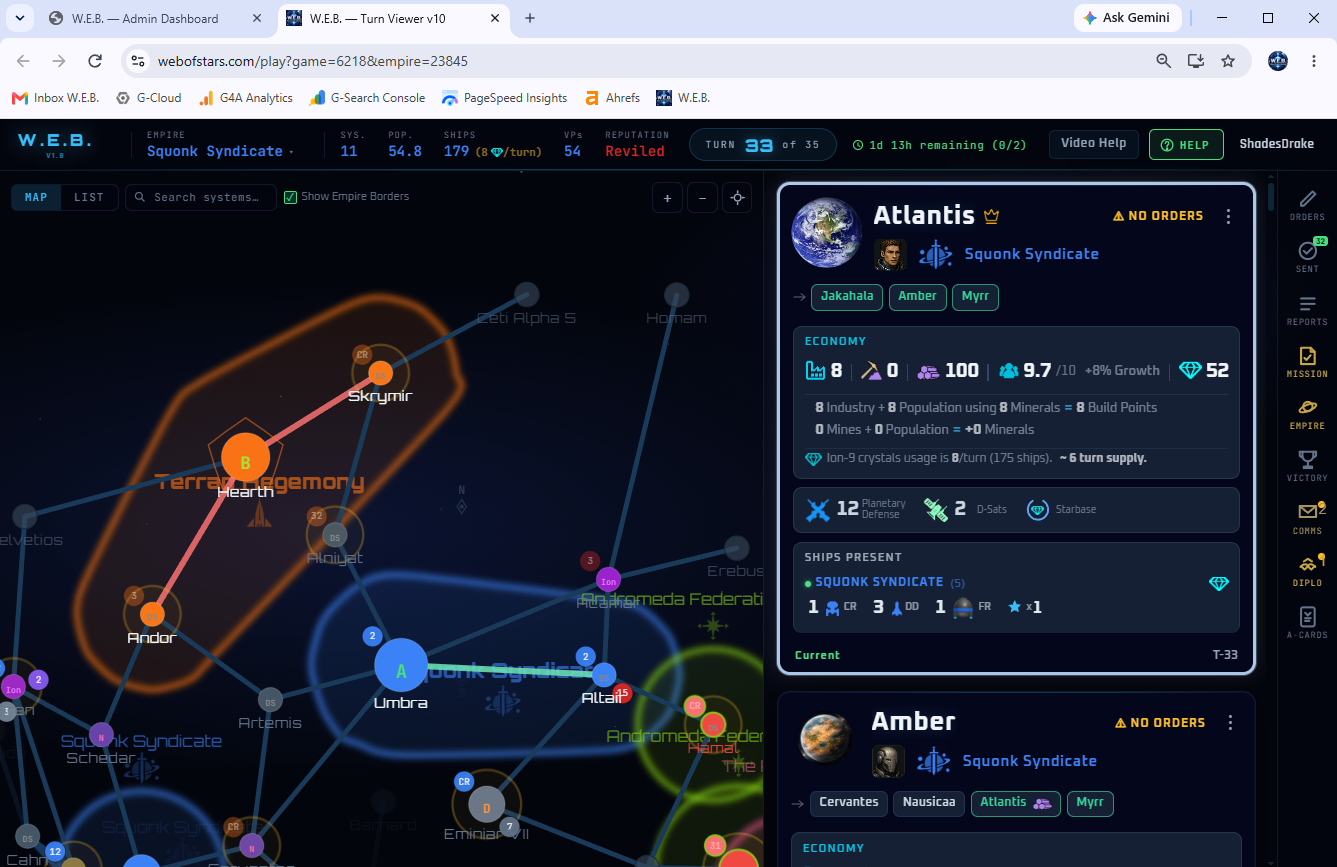
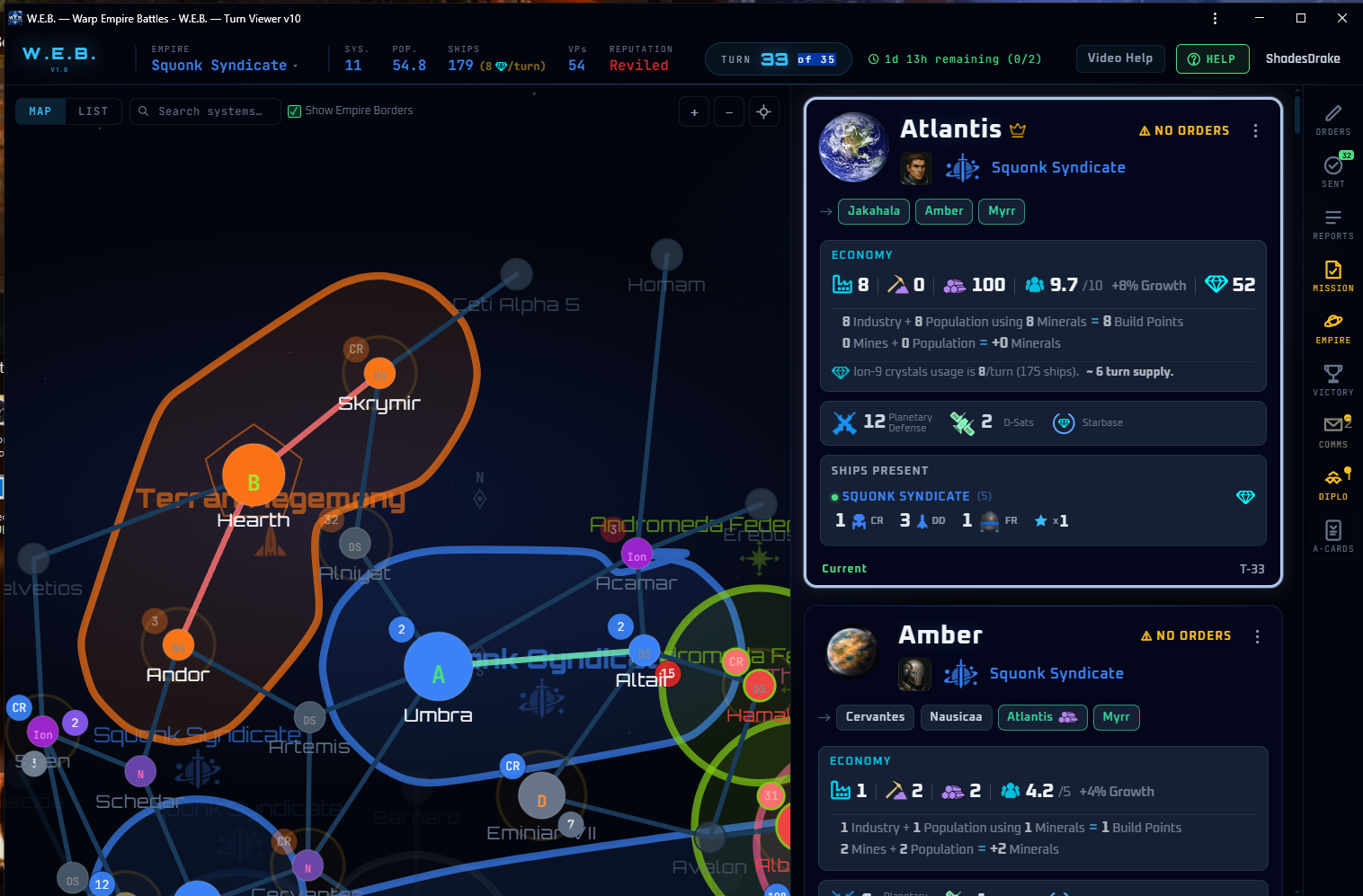
Get rid of the tabs, the address bar and the bookmarks strip, and put a Warp Empire Battles icon on your desktop that you double-click to play — exactly like an installed game. Takes about a minute, and you never have to hunt for the tab again.
On this page
1What changes
A normal browser window spends the top 100–150 pixels of your screen on things W.E.B. does not need: the tab strip, the address bar, the bookmarks bar, the extension icons. On a laptop that is a real chunk of your galaxy map. Installing W.E.B. as an app removes all of it and gives the game its own window in the taskbar, its own desktop icon, and its own Alt+Tab entry.
2The one-minute way — install W.E.B. as an app
This is the whole guide in one step. It gives you the clean window and the desktop shortcut and the W.E.B. logo icon, all at once, with nothing to type.
Google Chrome
- Go to webofstars.com/portal and log in, so the shortcut opens on your games list.
- Click the three-dot menu at the top-right of Chrome.
- Choose →
On older versions of Chrome this is → instead — and if you get that one, be sure to tick Open as window. - A small dialog appears showing the W.E.B. logo and the name. Leave the name as W.E.B. (or type whatever you like) and click .
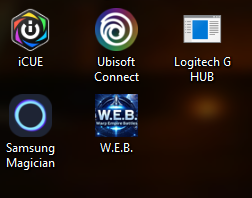
- W.E.B. reopens instantly in its own bare window, and a shortcut with the W.E.B. logo lands on your desktop. That is it — double-click it any time.
https://webofstars.com and try again. If it is still missing, use
the manual Windows method below, which always works.
Microsoft Edge
- Open webofstars.com/portal and log in.
- Click the three-dot menu at the top-right.
- Choose → .
- Name it W.E.B. and click .
- Edge then asks where to put it. Tick — and too, if you want it one click away — then click .
3Windows — build the shortcut by hand
Same end result, five more clicks. You create an ordinary Windows shortcut that launches Chrome or Edge in app mode — a window with no tabs and no address bar — and then you swap the icon for the W.E.B. logo yourself.
- Right-click an empty patch of your desktop and choose → .
- Paste this into the location box — use the line that matches the browser you
want it to open in:
Google Chrome
"C:\Program Files\Google\Chrome\Application\chrome.exe" --app=https://webofstars.com/portal
Microsoft Edge
"C:\Program Files (x86)\Microsoft\Edge\Application\msedge.exe" --app=https://webofstars.com/portal
Keep the quotation marks around the program path, and make sure there is a space before
--app=but none anywhere inside it. - Click , name it W.E.B., and click . You now have a working shortcut with a plain browser icon.
- Download the W.E.B. icon file and save it somewhere permanent — your
Pictures folder is fine, but not your Downloads folder, because Windows reads this
file every time it draws the icon and the shortcut goes blank if you delete it later.
 Download webofstars.ico
Windows icon file — all sizes from 16×16 to 256×256
Download webofstars.ico
Windows icon file — all sizes from 16×16 to 256×256
- Right-click your new shortcut → →
→ , pick the
webofstars.icofile you just saved, then → . - Optional, but worth it: right-click the shortcut once more and choose or .
4Mac — Safari and Chrome
Safari (macOS Sonoma and later)
- Open webofstars.com/portal in Safari and log in.
- Click the button in the toolbar — the square with the arrow.
- Choose .
- Name it W.E.B. and click . It appears in your Dock with the W.E.B. logo and opens in its own toolbar-free window.
- Want it on the desktop as well? Open → , find W.E.B., and drag it to your desktop while holding ⌘+⌥ to leave an alias there.
Chrome or Edge on a Mac
Identical to the Windows instructions in section 2 — the menus are in the same place. The finished app lands in your folder and in Launchpad rather than on the desktop; drag it out of Applications to the desktop or the Dock if you want it there.
5No shortcut needed — just press F11
If you only want the extra screen space for a single session, skip all of the above. With W.E.B. open in a normal tab:
| Platform | Full screen | Also worth knowing |
|---|---|---|
| Windows | F11 — press it again to come back | Ctrl+Shift+B hides the bookmarks bar permanently |
| Mac | ⌃+⌘+F | ⌘+⇧+B hides the bookmarks bar |
| Chromebook | The full-screen key above the number row | Same menu as desktop Chrome |
6iPad, iPhone and Android
The same trick works on a tablet or phone, and it matters more there: it removes the browser's address bar, which on a phone eats a surprising amount of a portrait screen.
iPad and iPhone (Safari)
- Open webofstars.com/portal in Safari — this does not work from Chrome on iOS.
- Tap the button (the square with the up arrow).
- Scroll down and tap .
- Tap . The W.E.B. logo appears on your home screen and opens full-screen with no browser bars at all.
Android (Chrome)
- Open webofstars.com/portal in Chrome.
- Tap the menu → (some versions say ).
- Confirm with or .
7Making it look right — zoom and window size
- If text looks too big or too small, your browser zoom is not at 100%. Press Ctrl+0 (Windows) or ⌘+0 (Mac) inside the W.E.B. window to reset it. The game already applies its own scaling, so stacking browser zoom on top of it is what makes panels overlap.
- The app window remembers its size and position. Drag it to the size you like once and it will come back that way. Double-click its title bar, or press ⎕+↑ on Windows, to maximise it.
- You can go one step further and press F11 inside the installed app window too — that removes the last thin title bar for a completely edge-to-edge galaxy.
- Notifications keep working. If you have turned on browser notifications for turn reminders, they behave from the app window exactly as they did from the tab.
8Removing it again
- Installed app (Chrome): open the W.E.B. window, click the
menu in its corner, and choose
Or visit
chrome://apps, right-click the W.E.B. tile and choose . - Installed app (Edge): go to
edge://apps, then use the next to W.E.B. → . - Hand-made shortcut: just delete it from the desktop like any other file.
- Mac Dock app: Finder → Applications, drag W.E.B. to the Bin.
- iPad / iPhone: press and hold the home-screen icon → .
None of these touch your account, your games or your submitted orders — the tab at webofstars.com/portal works exactly as before.
9Troubleshooting
| Problem | Fix |
|---|---|
| The shortcut asks me to log in every time | You created it from an Incognito or Private window, or you are blocking cookies for webofstars.com. Delete it, open a normal window, log in, tick Remember me, and create the shortcut again. |
| The icon is a plain browser logo | Windows caches shortcut icons. Follow step 5 of
section 3 to point it at webofstars.ico; if it still
will not change, sign out of Windows and back in to clear the icon cache. |
| The icon went blank later on | The .ico file was moved or deleted. Windows reads it every time it draws the
icon, so keep it somewhere permanent and re-point the shortcut at it. |
| “Install page as app” is greyed out or missing | You are in Incognito, on a work-managed browser that blocks installs, or on Firefox — which does not support app install at all. Use the manual shortcut or F11 instead. |
| The window opens far too small | Resize it once by dragging a corner; the browser stores that size for next time. |
| It opens the wrong page | The shortcut should point at https://webofstars.com/portal. Right-click it
→ and check the end of the target line. |